
 button in Safari

How to Sign Up For GTO Wizard: Free Trial & Download


GTO Wizard is the top tool for learning, training, and mastering Game Theory Optimal (GTO) concepts in poker.
Whether you're new to GTO Wizard or simply looking for a quick refresher, this guide will walk you through the process of signing up, accessing GTO Wizard on both desktop and mobile, and offer some helpful tips to get started with your first analysis.
How to Sign Up for GTO Wizard
Signing up for GTO Wizard is quick and effortless, and no subscription or payment details are required. In fact, you can be up and running in just three clicks:
Visit the Sign Up Page
Head to the GTO Wizard sign up page (use the PokerNews link to get 10% off your first purchase), then click 'Get Started for Free' to begin.

Choose a Login Option
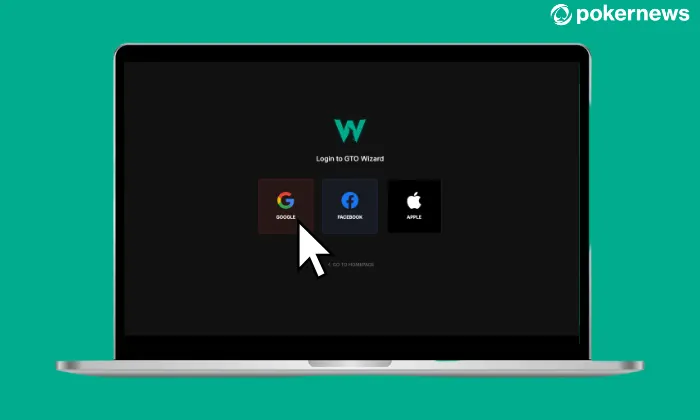
You'll then be prompted to log in using Google, Facebook, or Apple, or an email linked to one of those accounts. Please note that you'll need an existing account with at least one of these platforms to continue.
You're a Wizard, Harry
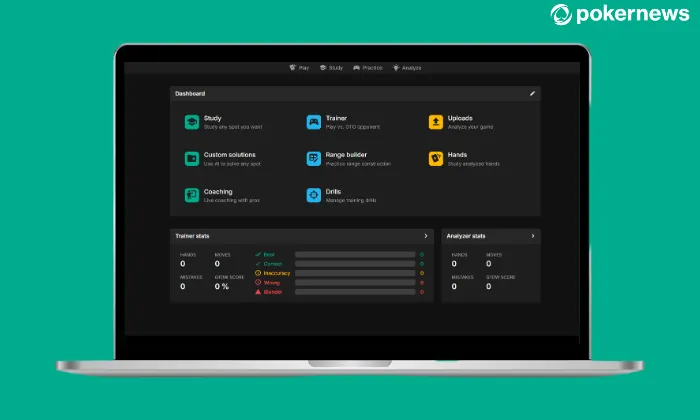
If you're already signed in to an existing account (for example, I was signed into my Google account and didn’t need to click anything else), you’ll be logged in automatically. Otherwise, log in as usual. Once signed in, you’ll be redirected to the GTO Wizard Dashboard with full access to the free version. It’s that simple.
Subscribing to a Paid Plan
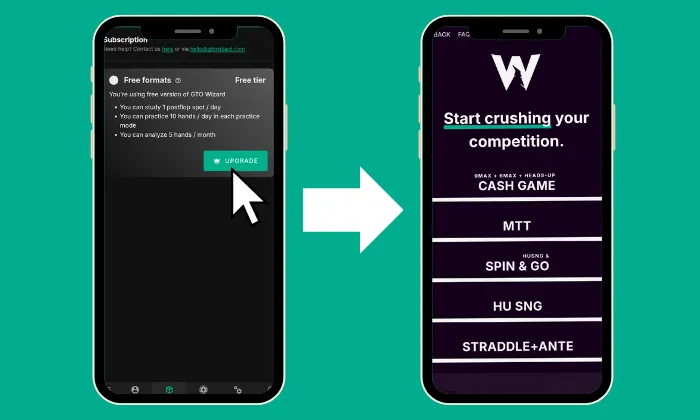
Once you've created your free account, upgrading to a paid subscription is nice and easy. The process is simple on both desktop and mobile:
- On desktop, just click the 'Upgrade' button at the top of the Dashboard.
- On mobile, tap the Box icon at the bottom or the hamburger menu, which grants you full access to all GTO Wizard features, including Upgrades.
Next, choose the poker format you want to study and select your preferred subscription level: Starter, Premium, or Elite. Of course, the Free Plan remains available at any time if you’d rather stick with that.
Can You Get a GTO Wizard Free Trial?
GTO Wizard doesn’t offer a traditional free trial because you don’t need one. With a free account, you can explore many of the site’s features and training tools right away.
However, keep in mind that the free version comes with some limitations, such as restricted access to postflop analysis and a limited number of practice hands in training mode.
How to Download GTO Wizard
Although GTO Wizard is a web-based platform that doesn’t require installation, users can opt to download it as a web app on both desktop and mobile devices (iOS or Android). Whether you choose to download the web app or not, it’s worth noting that GTO Wizard is fully optimized for both mobile and desktop devices, offering a seamless experience across all platforms.
Additionally, GTO Wizard is in the process of developing a dedicated iOS app, which will be available for download from the App Store once it's ready. We’ll keep you updated and let you know when the app goes live.
How to Install GTO Wizard on Your PC
Visit the GTO Wizard Website
Go to the GTO Wizard website using your preferred browser (available on Chrome, Edge, Firefox, and Safari).
Download the Web App
Click on the 'Download' or 'Install Web App' option (usually found in your browser's settings). This will allow you to install GTO Wizard as a web app on your desktop.
Access GTO Wizard
Once installed, launch the app directly from your desktop to start using GTO Wizard with full functionality.
For more detailed instructions on downloading GTO Wizard for desktop, check out the helpful guide on the GTO Wizard website.
How to Install GTO Wizard on Mobile (Android & iPhone)
While there isn’t a dedicated iPhone/Android app, you can easily install GTO Wizard as a progressive web app via your mobile browser by following these steps:
iPhone
- Open Safari.
- On the bottom, click on the Share icon.
- Click on “Add to Home Screen."
- You can now find a GTO Wizard icon on the home screen.
Android
- Open Google Chrome.
- Navigate to GTO Wizard and in the top right corner, click on the 3 dots.
- Scroll down and click "Install App" or "Add to Home Screen."
- You will now find a GTO Wizard app icon alongside your other apps.
Getting Started with Your First Analysis
As someone who’s spent many hours exploring GTO Wizard, I can tell you that it’s an incredibly powerful tool, though there’s so much to discover that it can feel overwhelming at first.
While I wouldn't say I've learned everything yet, I’ve definitely picked up some helpful tips and tricks along the way, and hopefully, these can give you a starting point when you first get on the GTO Wizard dashboard.
Navigating the Dashboard
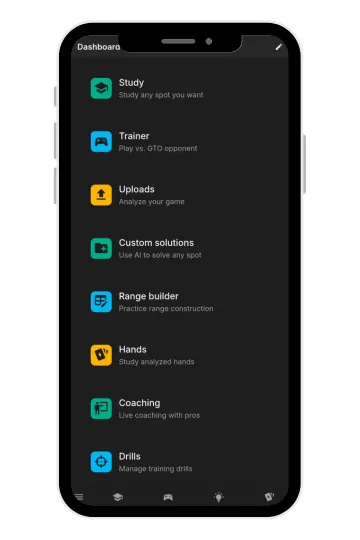
When you first log in to GTO Wizard, you’ll be greeted with a well-organized dashboard. It can seem like there’s a lot going on at first glance, but don’t worry, once you get the hang of it, it becomes a smooth and intuitive experience. Here's a quick rundown of the main sections you'll be using:
GTO Wizard also provides helpful onscreen popups to guide you through the site during your first login. For further assistance, you can explore the detailed FAQs section at help.gtowizard.com, or connect with the GTO Wizard community on Discord for answers to any questions you may have.
Running a Simple Hand Review
When you're ready to dive into your first analysis, start by uploading a hand or selecting one from your previous sessions. GTO Wizard makes it easy to review your decisions by breaking down each step of the hand, comparing your plays against optimal GTO strategies.
Even if you're new to hand reviews, the interface is straightforward, and as you explore, you'll find tools that guide you to understand your mistakes better and improve over time.
Tips for First-Time Users
- Start Small: It can feel like there’s an endless number of tools and features, but don’t try to tackle everything at once. Start with a few basic features, like the hand analysis and study sections, and gradually expand as you become more comfortable.
- Use the Range Builder: This tool is invaluable for understanding the concept of ranges and how to think about your hand strength in various situations. It's the basis of a lot of GTO play.
- Experiment with Trainer Mode: When I started, I loved using the Trainer to play against a GTO opponent. It helped me build confidence and get a real-time feel for optimal strategies.
- Don’t Be Daunted: Because GTO Wizard is such a powerful tool, it can be natural to feel overwhelmed at first. The key is consistent practice, and over time, the features will start to make more sense. Take it step by step, and you’ll see gradual improvement.
By focusing on one or two sections at a time and reviewing your progress regularly, you'll start to feel more at ease with the platform and see how much potential it has to really improve your poker game.

A Daily Dose of GTO is a free, beginner-friendly resource with 300+ interactive quizzes, perfect for building your GTO knowledge in just five minutes a day.
Read NowWhat’s Next? Choosing the Right Plan for Your Game
Now that we've covered the basics, including signing up, downloading the app, and getting started, you might be ready to explore one of GTO Wizard's paid subscriptions.
If that's the case, you can check out our complete and honest review of GTO Wizard here, or simply click the button below to sign up at the GTO Wizard site with a 10% discount.
Or, if you're not quite ready to upgrade, feel free to continue exploring the free version of GTO Wizard and everything it has to offer at your own pace!
Enjoy a 10% Discount on Your First Purchase
Getting started at GTO Wizard with your PokerNews discount is simple. Just follow these steps:
- Visit GTO Wizard: Use the PokerNews link to automatically activate your 10% off offer.
- Click “Sign Up” or “Get Started for Free”: You'll find this button on the homepage.
- Create Your Account: Start with a free plan or choose a paid subscription to unlock advanced tools and features.
- Complete Your Registration: Follow the prompts and enjoy full access with your discount already applied.
GTO Wizard Free Trial, Sign Up, and Download FAQs
Do I need to pay to use GTO Wizard?
No. GTO Wizard offers a free plan that gives you access to several key features, including hand analysis and training tools. You can upgrade to a paid plan at any time for advanced features.
Can I install GTO Wizard on my computer or phone?
Yes! GTO Wizard can be installed as a web app on both desktop and mobile devices. It works on all major browsers, including Chrome, Edge, Firefox, and Safari.
Is there a GTO Wizard mobile app?
While there isn’t a standalone app yet, you can install GTO Wizard as a progressive web app via your mobile browser. A dedicated iOS app is currently in development.
What’s the best feature for beginners?
Trainer Mode is a great starting point for new users. It lets you play against a GTO opponent using pre-set scenarios, helping you build confidence and learn GTO principles in real time.
What tools does the free version include?
The free version includes access to Trainer Mode, limited hand analysis, and some study tools. While it has some restrictions, it’s perfect for exploring the basics and getting familiar with the platform.
How do I claim the 10% discount on GTO Wizard?
Just sign up through the PokerNews link and your 10% discount will be automatically applied when choosing a paid plan.
Is GTO Wizard easy to use for beginners?
Yes, but it can feel overwhelming at first. Start small with basic tools like Trainer and Hand Analysis, and use the pop-up tips, FAQs, and community Discord for guidance.
What if I’m not ready to upgrade?
That’s totally fine! You can continue using the free version of GTO Wizard as long as you like and still benefit from many of its core tools.
Does GTO Wizard help me analyze my own hands?
Yes. You can upload hand histories through the "Uploads" tab to review your decisions and compare them against GTO strategies.